
NextClaw Remote Access: Keep Using Your Workspace from Anywhere
Published: July 18, 2026
Tags: Remote Access Local First Panel App
NextClaw can run on your computer, NAS, or server. With Remote Access, you can now open that same instance from a phone or another computer and continue using its conversations, tools, and apps without exposing the local management port directly to the public internet.
Remote Access is not a reduced chat page. It connects to the same NextClaw instance: your device still runs the agent, accesses files, and invokes tools, while the browser sends actions back to that device and displays the results.
Step 1: Enable Remote Access on Your Device
Open Remote Access in NextClaw settings. Once connected, the device card shows whether the platform account is connected, Remote Access is enabled, and the service is running. It also displays the device name, connection state, and most recent connection time.
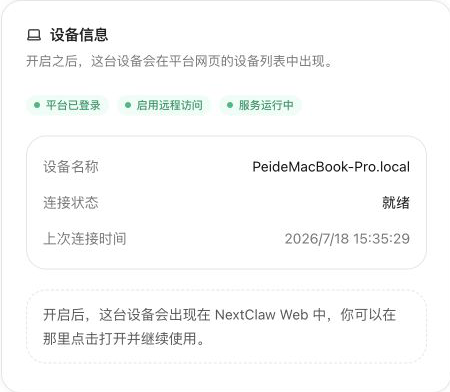
This card identifies the device that is providing NextClaw and confirms whether it is ready to open remotely.
You can also enable and inspect the connection from the command line:
nextclaw remote enable
nextclaw remote status
nextclaw remote doctor
Step 2: Find the Online Instance in Platform
Sign in to NextClaw Platform. My Instances lists the devices that have Remote Access enabled. You can switch between current, archived, and all instances, or filter by name, ID, platform, version, and connection state.
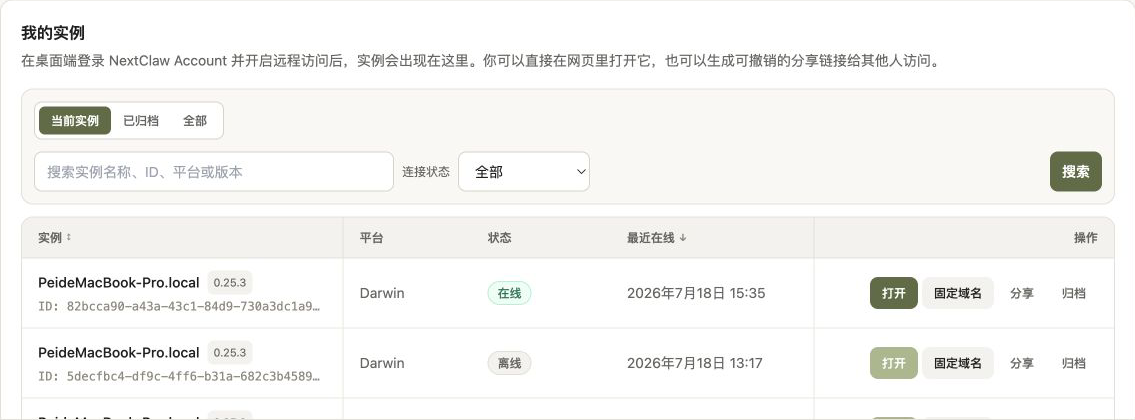
An online state means the device is available. Select Open to enter the NextClaw workspace it provides.
This page turns Remote Access from an address you need to remember into a device list you can inspect, filter, and operate. You can also configure a fixed domain, create a share link, or archive an old instance when needed.
Step 3: Open the Same Workspace
The following screenshot comes from a running remote workspace. The original conversation remains in the center, while a Semiconductors: 10 Years Panel App created by the agent runs on the right. Its charts, controls, and styles load directly inside the remote workspace.
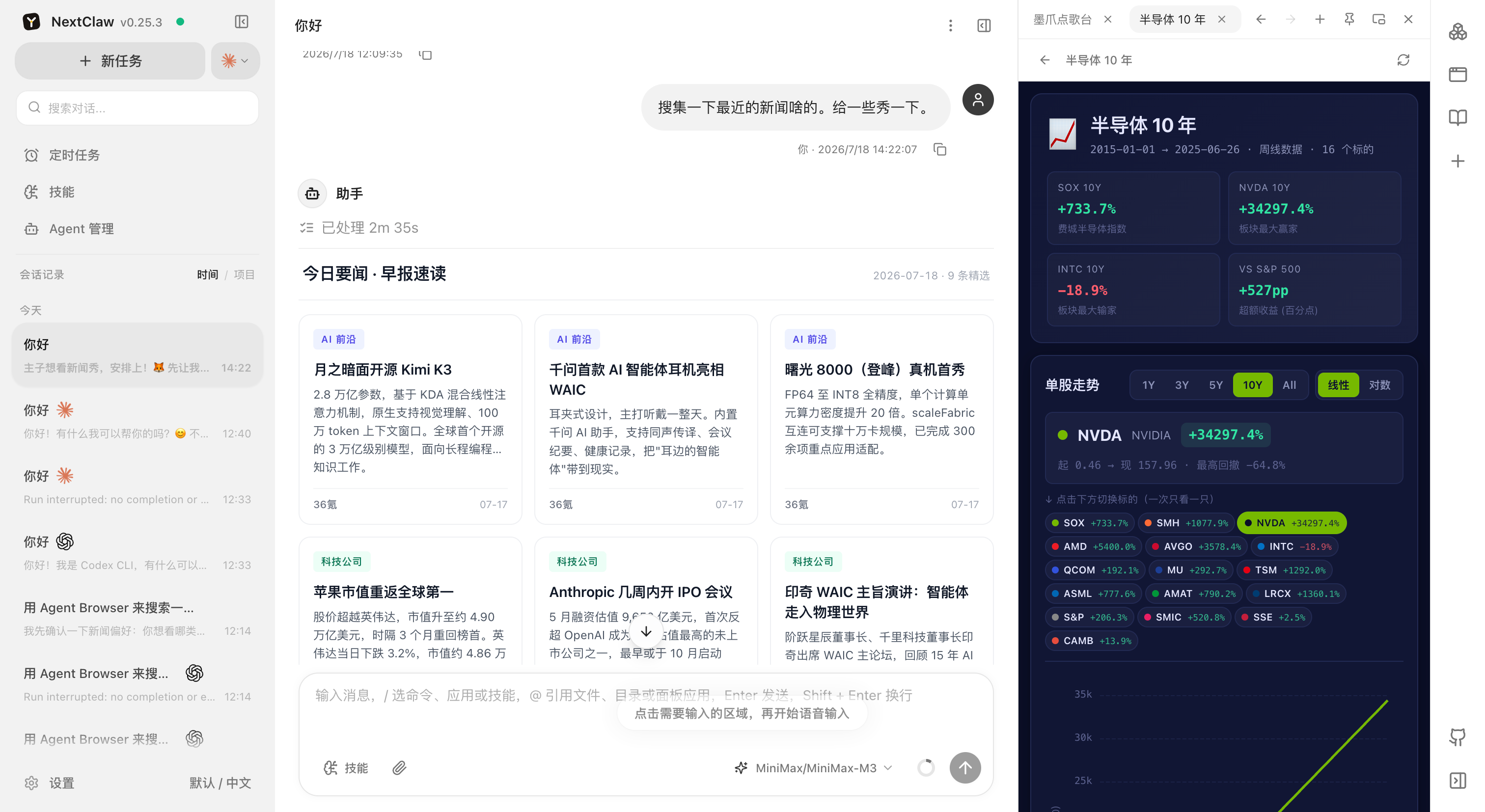
This is the result of the first two steps. You are not opening a separate web tool; you are entering the same NextClaw working environment through Platform. Conversations, skills, task results, and Panel Apps remain available.
What Remains Available Remotely
| Capability | What you see remotely |
|---|---|
| Continue existing conversations | Conversations, messages, and workspace context still come from the original NextClaw instance |
| Use the complete workspace | Send messages, invoke skills, inspect task results, and operate the side panel |
| Run Panel Apps | Data dashboards, file tools, and other apps continue to run in the remote page |
| Manage access | Check device status, disable Remote Access, or create and revoke share links when needed |
What travels with you is more than an input box. It is the agent workspace you have already configured. A home computer, office workstation, or long-running server can all become a NextClaw instance you can return to when needed.
Before You Start
First open http://127.0.0.1:55667 on the host device and confirm that NextClaw can send messages normally. Remote Access does not replace the local service: the host device must remain online and the NextClaw background service must keep running.
Boundaries
- Remote Access requires a NextClaw Account. Do not share a personal entry URL or share link with people you do not trust.
- You can disable Remote Access at any time with
nextclaw remote disable. - When you use cloud models, search services, or other online tools, related data is still sent according to the policies of those services.
Remote Access means local-first no longer has to mean sitting in front of one device. Your environment and data remain on hardware you control, while the same workspace is available when you need to enter it from elsewhere.